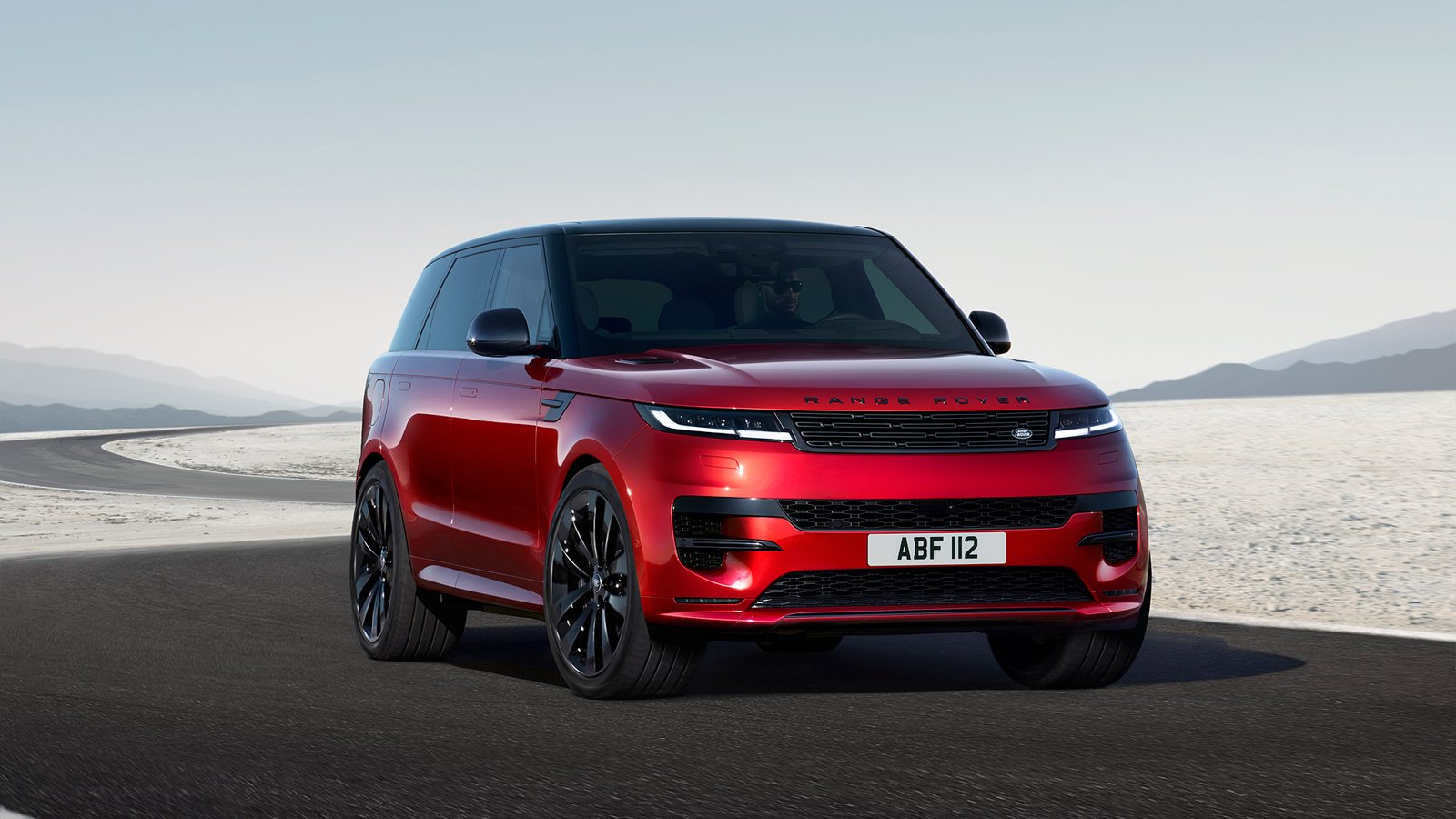
Every new tab is a chance to look at something you actually like instead of a blank page. The Land Rover Wallpapers New Tab – SUV Wallpaper extension replaces that blank page with an HD Land Rover wallpaper, so every browser session opens with a bit of rugged off-road style.
This guide covers what the extension does, its main features, how to install it, and answers to the questions people ask most often about it.
Why Land Rover Wallpapers Are Popular
Land Rover has built a reputation for rugged, capable SUVs that blend off-road performance with British design, and search interest in Land Rover wallpaper and SUV wallpaper stays steady among car enthusiasts and outdoor adventure fans alike. People want the bold body lines, the iconic grille, and standout Defender and Range Rover models on their phone and desktop. A new tab wallpaper extension is a simple way to keep that look in view every time you open the browser, without hunting for image files or resetting your wallpaper manually.
What the Extension Does
Land Rover Wallpapers New Tab – SUV Wallpaper replaces the default new tab page with a rotating set of HD Land Rover wallpaper images. Instead of a blank page or a stock browser homepage, you get an SUV wallpaper background paired with a working search bar, clock, and shortcut tiles.
Key Features
HD wallpapers. A handpicked set of high-resolution Land Rover SUV wallpaper images, sharp on any screen size.
Smart search bar. Searches run through your existing default search engine. The extension does not change your search provider.
Keyboard shortcut. Press / or Ctrl+K from anywhere on the new tab page to start typing a search.
Clock and date. Four position options and four display formats.
Popular shortcuts. One-click tiles for sites like YouTube, ChatGPT, Instagram, and X.
Privacy by design. No account, no sign-in, no tracking.
How to Install the Land Rover Wallpapers Extension
- Open the Chrome Web Store listing for Land Rover Wallpapers New Tab – SUV Wallpaper.
- Click Add to Chrome.
- Confirm the permission prompt.
- Open a new tab. The Land Rover wallpaper loads automatically.
- Use the settings panel to adjust clock position or shortcuts.
The same steps work in any Chromium-based browser, including Edge and Brave, since they use the same extension store format.
Privacy and Permissions
The extension asks for a single permission, search, which lets the built-in search bar pass your query to your default search engine. There are no host permissions, so the extension cannot read the content of the pages you visit. Your layout, shortcuts, and search history stay on your own device. Shortcut tiles load their site icon from Google’s public favicon service.
Frequently Asked Questions
Is this extension affiliated with Land Rover? No. This is an unofficial, fan-made wallpaper extension. It is not affiliated with or endorsed by Land Rover or any other rights holder. Artwork and names belong to their respective owners.
Will it slow down my browser? No. The extension only replaces the new tab page. It does not run scripts on other websites and has no host permissions.
Can I keep using Google, Bing, or another search engine? Yes. The search bar sends queries to whatever search engine is already set as your Chrome default. It does not change that setting.
Does the extension collect or sell my data? No. There is no account system and no tracking. Search and shortcut settings are stored locally on your device.
Can I lock a single wallpaper instead of rotating through the set? Yes. The settings panel includes an option to select and lock one wallpaper if you prefer a fixed background over rotation.
How do I remove the extension? Open Chrome’s extension manager, find Land Rover Wallpapers New Tab – SUV Wallpaper, and click Remove. An uninstall option is also available from the extension’s own settings panel.
Is it free? Yes, the extension is free to install and use.
Get the Land Rover Wallpapers Extension
A new tab is one of the most viewed pages in any browser. Filling it with an HD Land Rover wallpaper is a simple way to bring rugged off-road style into your daily browsing, without giving up a working search bar, clock, or shortcuts. Install it from the Chrome Web Store and set your preferred clock and shortcut layout from the settings panel.



Community comments
Comments are reviewed before they appear publicly.