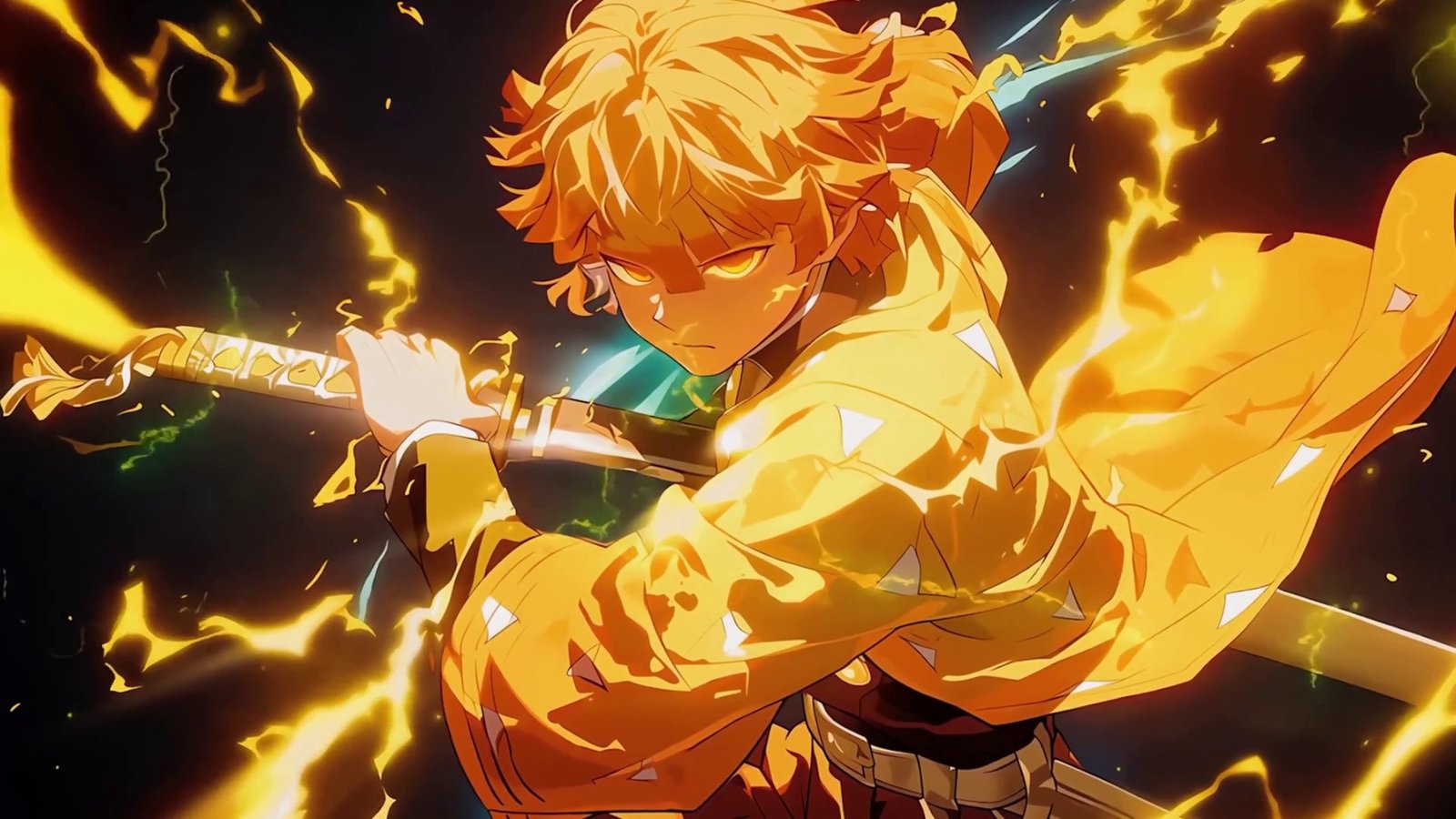
Zenitsu Thunder Strike Live Wallpaper gives your Chrome New Tab an animated background centered on Zenitsu Thunder Strike. Zenitsu crouches with his sword amid a dense burst of golden lightning.
The gold and black palette and thunder action composition make this a distinct option for anyone who enjoys Demon Slayer imagery. Alongside the wallpaper, the extension includes search, a clock, brightness settings and website shortcuts.
A Closer Look at the Zenitsu Thunder Strike Wallpaper
His yellow hair and patterned coat blend into the surrounding sparks while the darker background adds contrast. These are the visual details to look for in the featured preview. The image is taken from the bundled video, so it represents the background included with this extension.
The artwork uses gold and black tones to establish its mood. Rather than switching between unrelated pictures, the extension returns to this composition whenever you open its new tab page. That makes it easier to choose a layout that suits the scene and keep your favorite part of the image visible.
Anime artwork in a browser setting
The appeal of this anime background comes from the way it isolates a particular character or scene. Expression, color and framing can make a familiar subject feel very different from one wallpaper to another. Here, the preview is the guide to the included artwork: it shows the composition, the main figure and the balance between light and shadow. The result works as a visual tribute for fans while still leaving the new tab available for searches and shortcuts.
Animated Wallpaper with Useful New Tab Controls
The wallpaper plays as a bundled video loop. Use the animation control when you want to pause the scene, then resume it when you prefer movement again. A still view can be useful while organizing shortcuts or concentrating on a search; the other new tab controls remain available.
Brightness is adjustable independently of your monitor settings. Start with the default view, then dim the background until the text is comfortable to read on your display. Brighter artwork may suit a lower setting, while a darker scene may need very little adjustment. The right balance depends on your screen and room lighting.
- Live background: A looping animated scene based on the featured preview.
- Brightness and playback: Dim the wallpaper or pause and resume the animation.
- Search choices: Use your default search engine or choose a provider for the extension search field.
- Recent searches: Keep recent queries in the browser and clear them when needed.
- Keyboard access: Press
/orCtrl+Kto focus search. - Clock and date: Choose the available formats and positions.
- Website shortcuts: Add and organize tiles for frequently visited sites.
How to Install and Use
The Chrome Web Store installation link will appear on this page when the listing is available. Once you can open the listing, follow these steps to install the extension and set up the new tab.
- Open the listing. Follow the Chrome Web Store link for Zenitsu Thunder Strike Live Wallpaper when it is available. Check its name, publisher and screenshots.
- Select Add to Chrome. Review the permission prompt, then choose Add extension if you want to continue.
- Open a new tab. The animated background appears with the extension search, clock and shortcut controls.
- Adjust brightness and playback. Open settings, dim the artwork to suit your screen and try pausing or resuming the animation.
- Personalize the layout. Choose your clock and date options, set your search provider preferences and arrange website shortcuts.
- Try a search. Click the search field or press
/orCtrl+K, enter a query and submit it.
Choosing a Layout That Suits the Artwork
Begin by looking at where the main subject sits in the Zenitsu Thunder Strike preview. Place the clock where it is readable without covering the details you most want to see. You can then add a short list of useful website shortcuts, leaving the rest of the background visible.
Keep the search options aligned with the way you already browse. The extension can pass a query to your default engine, and its own search field also offers provider choices. Changing a provider inside the extension does not replace the default search engine configured in Chrome.
After the first setup, open another tab to check the overall balance. If the page feels visually busy, try pausing the background or reducing its brightness before changing the layout. Small adjustments can make the artwork and the browsing controls work together without requiring a different extension.
Privacy and Permissions
No account or sign-in is required. Layout preferences, shortcuts and recent searches are stored in your browser. The extension requests the search permission to pass queries to the default search engine. It has no host permissions to read the pages you visit.
Search queries are handled by the provider you choose. Shortcut tiles request website icons from Google’s public favicon service. Read the privacy policy for more information before installing.
Frequently Asked Questions
What is Zenitsu Thunder Strike Live Wallpaper?
It is a Chrome extension that places an animated Zenitsu Thunder Strike background on the new tab page, together with search, a clock and website shortcuts.
What artwork is included?
The included background centers on Zenitsu Thunder Strike. The featured preview shows the specific scene. The extension uses one bundled video rather than a separate wallpaper gallery.
Can I pause the wallpaper or dim the image?
Yes. Use the playback control to pause or resume the animation, and adjust brightness in settings to balance the artwork with the interface text.
Does this change my desktop background?
The extension changes Chrome’s new tab page. It does not apply the wallpaper to your Windows or macOS desktop or place it behind the websites you visit.
Will it change my default search engine?
No. Chrome’s default engine remains unchanged. You can also choose a provider for searches made through the extension’s own search field.
Can I customize the clock and shortcut tiles?
Yes. Choose from the available clock and date options, then add and organize website shortcuts for your browsing routine.
Do I need an account?
No account is required. Preferences, shortcuts and recent searches are stored locally in your browser. Search providers and the favicon service handle their own requests.
How do I remove the extension?
Open Chrome’s Extensions menu, choose Manage Extensions, find Zenitsu Thunder Strike Live Wallpaper and select Remove. Chrome will stop using its new tab page after removal.
Explore More Live Wallpapers
Browse the live wallpapers collection for more animated backgrounds. Use each preview to compare the subject, palette and composition, then choose the scene that fits your browser.
Unofficial fan-made extension. Not affiliated with or endorsed by any rights holder. Artwork, character names and trademarks belong to their respective owners.


Community comments
Comments are reviewed before they appear publicly.